KEBA KeEnergy
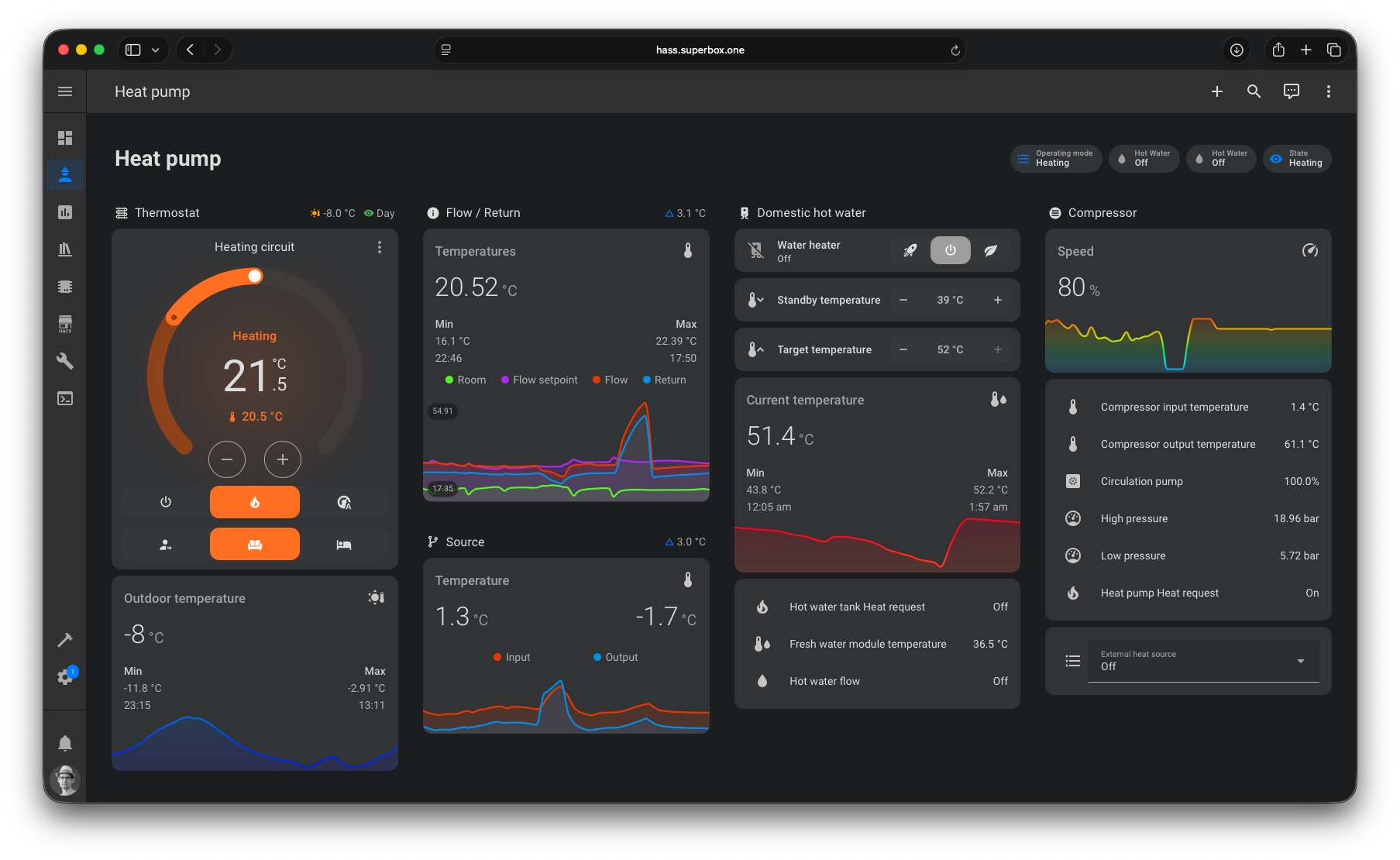
The KEBA KeEnergy integration connects Home Assistant to heat pumps with a KEBA KeEnergy control unit. It reads the values of the control unit, the heat pumps, heating circuits, hot water tanks, buffer tanks, solar circuits, external heat sources and photovoltaics from the local Web HMI and lets you change operating modes, target temperatures, heating curves and more.
This is an unofficial community integration. It is not affiliated with or supported by KEBA or the manufacturer of your heat pump. For support, open an issue.
Use cases
- Monitor temperatures, pressures, operating states and the energy consumption of your heat pump.
- Track the seasonal performance factor (SPF) of heating, cooling and hot water.
- Change the operating mode of the heating circuits or the hot water tank from a dashboard or an automation.
- Set the away date range from a calendar, e.g. for holidays.
- Use the excess energy of your photovoltaics system for heating and hot water.
Supported devices
The integration works with heat pumps that provide a KEBA KeEnergy Web HMI. It is used with these manufacturers and devices:
| Manufacturer | Tested control unit | Tested heat pump |
|---|---|---|
| M-TEC | AP 420/H-A | WPS-412-XHV |
| AP 440/H-A | WPS26, WPS412, AHPA618, AHPC27 | |
| ino | AP 440/H-A | Bartl 4.0 |
| Windhager | AP 440/H-A | Evo 9 |
If your device works and is not in the list, or if it does not work, please open an issue.
The integration creates a device for the control unit and one for each heat pump, heating circuit, solar circuit, hot water tank, buffer tank, external heat source, switch valve, passive cooling and photovoltaics system of your setup. All devices are linked to the control unit.
Prerequisites
- Home Assistant 2026.9.4 or newer with HACS installed.
- Network access from Home Assistant to the Web HMI of the control unit.
- The username and password of the Web HMI, if the Web HMI requires a login (newer software versions).
Installation

- Install the integration with HACS (search for "KEBA KeEnergy"). For a manual installation, copy the
custom_components/keba_keenergydirectory of the latest release into thecustom_componentsdirectory of your Home Assistant configuration. - Restart Home Assistant.
Configuration
Home Assistant discovers AP 440 control units in your network automatically. To add the KEBA KeEnergy integration manually, use this My button:

Or go to Settings → Devices & services, select + Add integration and search for KEBA KeEnergy.
| Parameter | Description |
|---|---|
| Host | The hostname or IP address of the Web HMI, without protocol and port, e.g. 10.0.0.100 or ap4400.local. |
| Uses an SSL certificate | Enable it if the Web HMI is only reachable with https://. Self-signed certificates are accepted. |
| Username | The username of the Web HMI. Only asked if the Web HMI requires a login. |
| Password | The password of the Web HMI. Only asked if the Web HMI requires a login. |
To change the host or the credentials later, select Reconfigure in the menu of the integration entry. If the Web HMI rejects the credentials, Home Assistant asks you to enter them again. If a configured control unit is discovered with a new IP address, Home Assistant updates the host automatically. A configured hostname is kept.
Options
To change the options, go to Settings → Devices & services → KEBA KeEnergy and select Configure.
| Option | Default | Description |
|---|---|---|
| Scan interval | 20 | Time in seconds between two updates, at least 20. |
| Control unit update multiplier | 1 | Update the values of the control unit only every n-th scan interval (1 to 180). |
<Device> update multiplier | 1 | Same for each device type of your setup, e.g. heat pump or hot water tank. |
The update multipliers are only shown for the device types of your setup. If all multipliers have a common divisor, the integration multiplies the scan interval by it and divides the multipliers, e.g. a scan interval of 20 with the multipliers 2 and 4 is saved as a scan interval of 40 with the multipliers 1 and 2.
Supported functionality
The entities depend on the setup of your heat pump. Values that your control unit or software version does not provide are not created. Changes are written to the control unit, see Known limitations.
Control unit
- Select: operating mode
- Sensors: outdoor temperature, operating mode, CPU and RAM usage (diagnostic)
Heat pump
- Sensors: state and substate, temperatures of flow, return flow, source, compressor, condensation and vaporization, overheating, expansion valve position, pressures, pump and compressor speeds
- Energy sensors: compressor, heating and hot water power, coefficient of performance, thermal energy and electricity consumption of heating, cooling and hot water, seasonal performance factor (SPF), consumption from PV surplus
- Statistics: operating hours, maximum runtime and activation counter, also for PV surplus
- Binary sensors: compressor, heat request, source, source actuator, source pressure, three-phase, frequency inverter, PV surplus
- Number and switch: compressor speed limit at night
Heating circuit
- Climate: HVAC mode (auto, heat or cool, off), target room temperature (changes the offset) and the presets auto, day, night, party and, for heating circuits, away
- Numbers: target room temperatures (day, night, away, offset, PV surplus), heating and cooling limits, heating and cooling curve offset and slope
- Selects: operating mode, heating curve, cooling curve
- Switches: use PV surplus, use heating curve, use cooling curve (only for cooling circuits, a heating and cooling circuit uses one setting for both and only has Use heating curve)
- Sensors: room temperature and humidity, dew point, flow and return flow temperatures, mixer, pump speed, heat and cool request, the current setpoints
- Binary sensor: pump state
Hot water tank and buffer tank
- Water heater: operating mode (off, on, heat up and, for the hot water tank, schedule) and target temperature
- Numbers: target and standby temperatures, PV surplus target temperature and hysteresis
- Select and switch: operating mode, use PV surplus
- Sensors: current temperatures, fresh water module and circulation return temperature
- Binary sensors: heat request, cool request, hot water flow, circulation pump state
Solar circuit, external heat source, passive cooling, switch valve and photovoltaics
- Solar circuit: collector and tank temperatures, pumps, power and energy, target temperatures, operating mode, priority switch
- External heat source: operating mode, target temperature, statistics, use PV surplus and minimum runtime
- Passive cooling: temperature, switch valve position, mixer and circulation pump
- Switch valve: position
- Photovoltaics: excess power, daily and total energy, PV surplus
Actions
keba_keenergy.set_away_date_range
Sets the away period of all heating circuits. During the away period, the heating circuits use the target room temperature (away).
| Field | Description |
|---|---|
config_entry | The KEBA KeEnergy integration entry. |
start_date | First day of the away period, e.g. 2026-01-01. |
end_date | Last day of the away period, e.g. 2026-01-14. |
A date with time, e.g. 2026-01-01T08:00:00, is accepted too, only the date is used.
keba_keenergy.set_heating_curve_points
Sets the points of a heating curve. If the heating curve already has these points, nothing is written.
| Field | Description |
|---|---|
config_entry | The KEBA KeEnergy integration entry. |
heating_curve | The name of the heating curve as shown in the heating curve select, e.g. HC1 or HC FBH. |
points | 1 to 16 points, each with an outdoor (-40 to 40 °C) and a flow (10 to 90 °C) temperature. |
action: keba_keenergy.set_heating_curve_points
data:
  config_entry: 0123456789abcdef0123456789abcdef
  heating_curve: HC1
  points:
    - outdoor: 20
      flow: 20
    - outdoor: 0
      flow: 30
    - outdoor: -20
      flow: 40
Examples
The entity IDs start with <platform>.keba_keenergy_ followed by the serial number of the control unit, the device
type and the entity key. The examples use the serial number 12345678, replace it with the one of your device. You
find the entity ID in the entity settings.
Set the away date range from a calendar
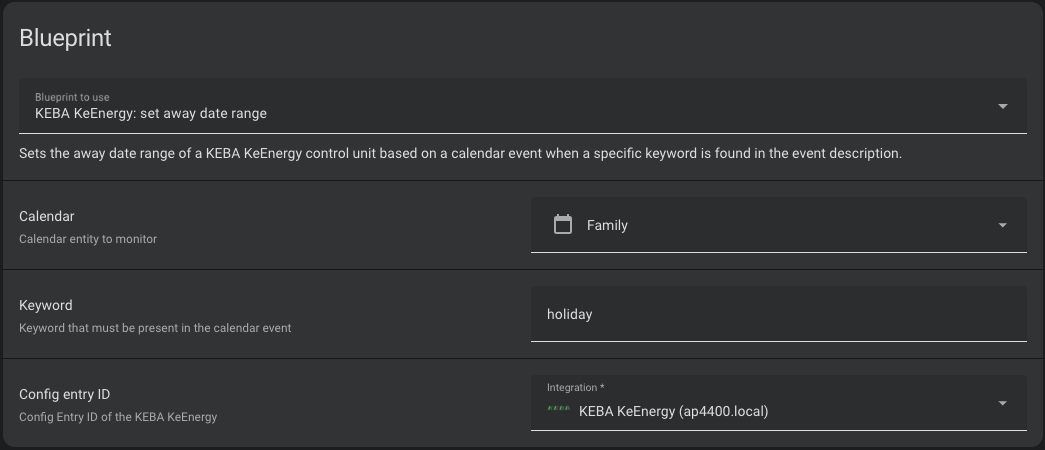
This blueprint sets the away date range when a calendar event with a keyword in its description starts, e.g. a holiday.
Temperature delta templates
A template sensor for the delta between the source input and output temperature of the heat pump:
template:
  - sensor:
      - name: Heat pump source temperature delta
        unique_id: heat_pump_source_temperature_delta
        state: >-
          {% set input = states("sensor.keba_keenergy_12345678_heat_pump_source_input_temperature")|float(0) %}
          {% set output = states("sensor.keba_keenergy_12345678_heat_pump_source_output_temperature")|float(0) %}
          {{ (input - output)|round(2) }}
        icon: mdi:thermometer
        unit_of_measurement: °C
        device_class: temperature
        state_class: measurement
The same works for the flow and return flow temperature of the heat pump or of the heating circuits:
template:
  - sensor:
      - name: Heat pump flow and return temperature delta
        unique_id: heat_pump_flow_and_return_temperature_delta
        state: >-
          {% set flow = states("sensor.keba_keenergy_12345678_heat_pump_flow_temperature")|float(0) %}
          {% set return_flow = states("sensor.keba_keenergy_12345678_heat_pump_return_flow_temperature")|float(0) %}
          {{ (flow - return_flow)|round(2) }}
        icon: mdi:thermometer
        unit_of_measurement: °C
        device_class: temperature
        state_class: measurement
Outdoor temperature chart
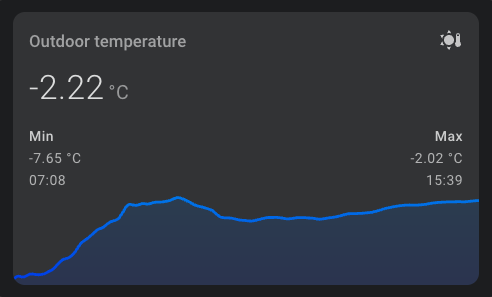
A chart of the outdoor temperature with the Mini Graph Card. The color of the line follows the temperature.
type: custom:mini-graph-card
name: Outdoor temperature
entities:
  - entity: sensor.keba_keenergy_12345678_outdoor_temperature
    name: Temperature
line_width: 3
hour24: true
points_per_hour: 12
show:
  labels: false
  extrema: true
color_thresholds:
  - value: -10
    color: "#0020E7"
  - value: 0
    color: "#008EE7"
  - value: 10
    color: "#00E7DD"
  - value: 20
    color: "#00E758"
  - value: 25
    color: "#BEE700"
  - value: 30
    color: "#E79700"
  - value: 35
    color: "#E73700"
Data updates
The integration polls the Web HMI every 20 seconds by default, see Options. With the update multipliers, slowly changing values, e.g. of the control unit, can be updated less often to reduce the load on the Web HMI.
The devices and entities are detected when the integration is set up. After you change the setup of your heat pump, reload the integration. Devices that the control unit no longer provides, e.g. a removed buffer tank, are removed with their entities.
With every update, the integration also reads whether the control unit uses the sensors (the message ID of a sensor).
The sensors and binary sensors have the message ID as attribute message_id, 0 means the sensor is in use. Sensors
and failure inputs that the control unit reports as not in use, e.g. not connected or not configured, are unknown, and
the climate and water heater entities leave out their values. They have a value again with the next update after the
sensor is connected.
Known limitations
- The control unit stores every change in its flash memory, which only allows a limited number of write operations. Avoid automations that change values very often. If more than 30 changes are written in a week, Home Assistant shows a repair issue. See Issue #23.
- Changes of numbers, target temperatures and the climate entity are written after a short delay, so several quick changes result in one write operation.
- Only values that the Web HMI provides are supported. Missing values have to be added to the KEBA KeEnergy API first.
Troubleshooting
- Failed to connect: enter the hostname or IP address without protocol and port. Correct:
10.0.0.100. Incorrect:10.0.0.100:443orhttps://ap4400.local. If the Web HMI only works withhttps://, enable Uses an SSL certificate. - Invalid authentication: check that you can log in to the Web HMI in the browser with the same username and password.
- Missing entities: entities are only created for values that your control unit provides. Reload the integration after a change of your heat pump setup.
- Unknown sensors: if the attribute
message_idis not0, the control unit reports the sensor as not in use, e.g. it is not connected or not configured. The Web HMI shows-instead of a value.
If the problem persists, enable debug logging, reproduce the problem and open an issue with the log, the diagnostics (Download diagnostics in the menu of the integration entry, the host, the credentials and the serial number are removed), the Web HMI software version (Service → Systeminformationen → Software) and the device hardware name (Service → Systeminformationen → Gerät).
Removing the integration
This integration follows standard integration removal.
- Go to Settings → Devices & services and select KEBA KeEnergy.
- Select the three dots ⋮ of the entry and select Delete.
- To remove the files as well, remove the integration in HACS and restart Home Assistant.



 @mh-superbox